01 · Addon
AXIS Core Addon
Retargeting and animation tools for Blender. Compatible with Blender 4 and 5.
 Get on Superhive
 Get on Gumroad
Overview
AXIS Core is a Blender addon designed for retargeting motion from third-party rigs to the AXIS rig system (OMNIA 2 and VERSA). It handles both pose retargeting and full animation baking, with additional tools for facial mocap and animation cleanup.
The core workflow is simple: select your AXIS rig, select the source rig, and either retarget a single pose or bake a full animation. The addon automatically identifies the source rig system and applies the correct bone mapping.
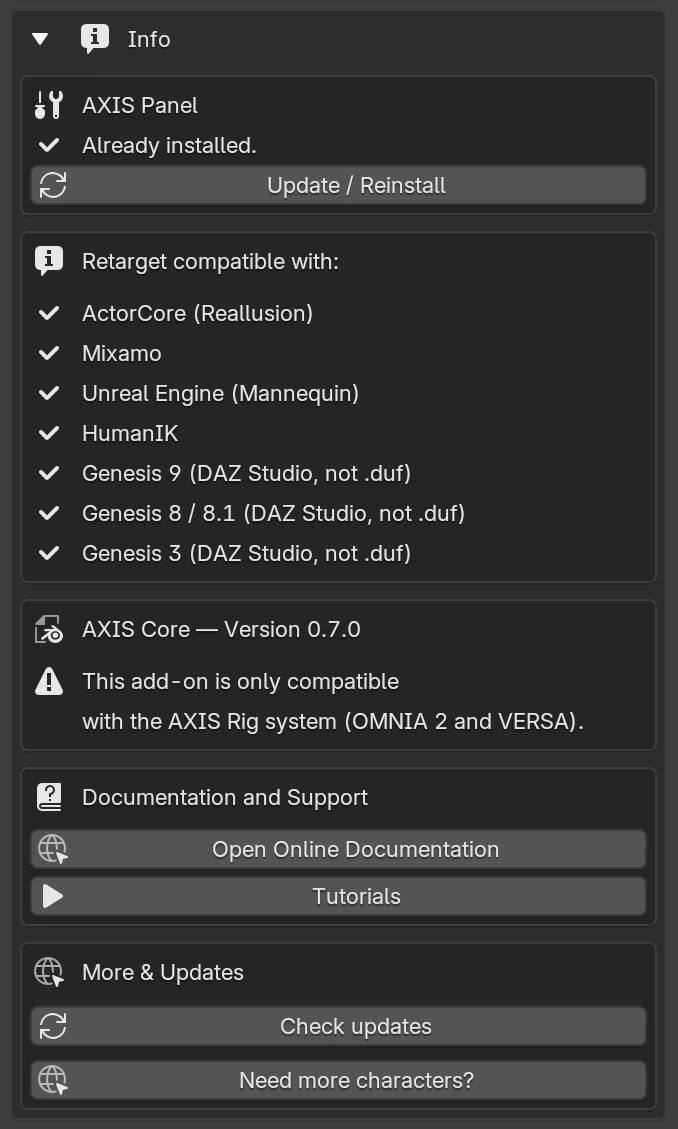
Supported source systems: Mixamo · ActorCore (Reallusion) · Unreal Engine (Mannequin) · HumanIK · Genesis 3 · Genesis 8 / 8.1 · Genesis 9 (DAZ Studio)
Installation
Download the latest version from SuperHive or Gumroad. The file is named axis_core_x.x.x.zip, do not extract it.
- In Blender, go to Edit › Preferences › Add-ons › Install…
- Select the
axis_core_x.x.x.zipfile. - Enable the checkbox next to AXIS Core.
- Open the 3D Viewport, press N to open the side panel, and select the AXIS Core tab.
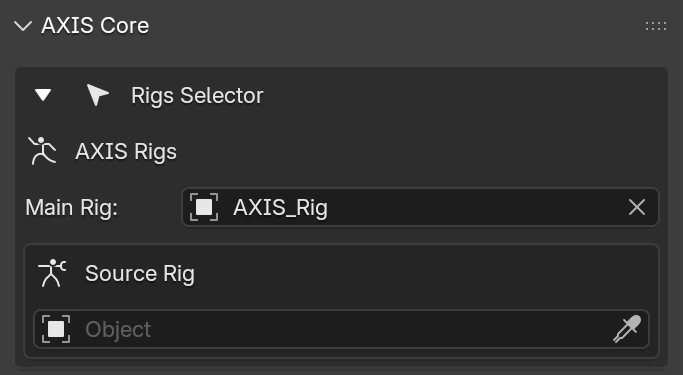
Rigs Selector
The first thing to configure before using any tool in the addon.
- Main RigSelect your AXIS character rig, the destination that will receive the retargeted pose or animation.
- Source RigSelect the rig to retarget from. Can be Mixamo, ActorCore, Unreal Mannequin, DAZ, or any other supported rig.
Once a source rig is assigned, the addon automatically detects its system and displays it as a label below the selector. No manual selection is needed.
Retarget Pose
Copies the pose from the source rig to the AXIS rig on the current frame only. No keyframes are created; it is a live pose transfer.
Useful for testing that the retarget is working correctly before committing to a full bake, or for manually posing the AXIS rig by mirroring the source rig's pose frame by frame.

Bake Animation
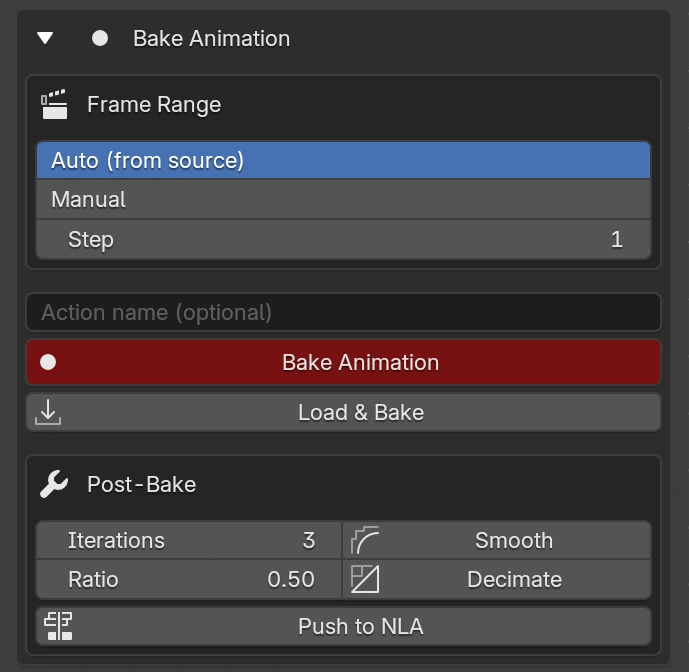
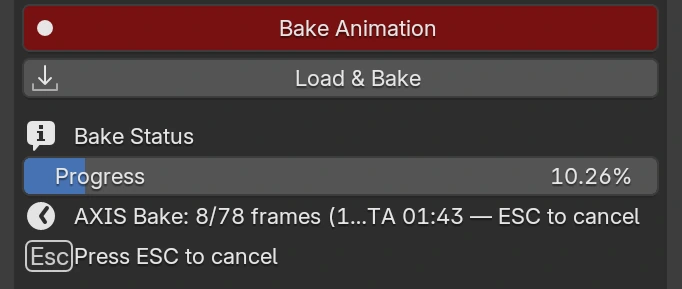
Retargets and bakes the full animation from the source rig into a new action on the AXIS rig.
Frame Range
- AutoReads the frame range directly from the source rig's animation. Recommended in most cases.
- ManualSet a specific start and end frame. Useful when you only want to bake a portion of the animation.
- StepBakes one frame every N frames. Leave at 1 for full resolution. Higher values produce a lighter result at the cost of motion detail.
Action Name
Optional name for the baked action. If left empty, a name is generated automatically.
Load & Bake
Opens a file browser to import an FBX or GLTF file directly. The file is set as the source and the bake starts immediately. The imported rig is removed after baking, making it the fastest way to retarget a single animation file.
Post-Bake
- SmoothReduces jitter and noise. Adjust iterations before clicking; start with 3–5 for typical mocap data.
- DecimateRemoves unnecessary keyframes. Values between 0.3 and 0.5 are a good starting point for mocap cleanup.
- Push to NLASends the baked action to the NLA editor as a strip, freeing the active slot for another bake.
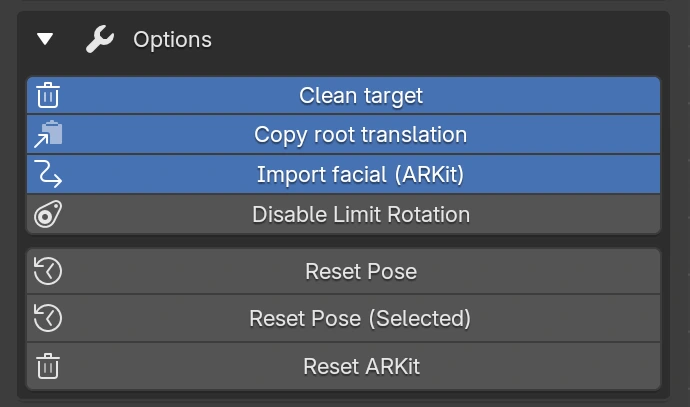
Options
Additional settings that affect how the retarget and bake work. Blue buttons are active, grey are inactive.
- Clean TargetResets the AXIS rig pose to rest before each retargeted frame. Recommended in most cases.
- Copy Root TranslationTransfers the root bone's position from the source rig. Disable to keep the character in place.
- Import Facial (ARKit)When enabled, ARKit facial data from the source rig is automatically transferred during retarget and bake.
- Disable Limit RotationToggles bone rotation limits. Useful for exaggerated or stylised animation beyond the rig's built-in limits.
- Reset PoseResets the AXIS rig assigned in the Rigs Selector to its rest pose.
- Reset Pose (Selected)Resets whichever rig is currently selected in the viewport, useful for the Face Widget or secondary rigs.
- Reset ARKitClears all ARKit facial animation keyframes from the AXIS rig on the current frame.
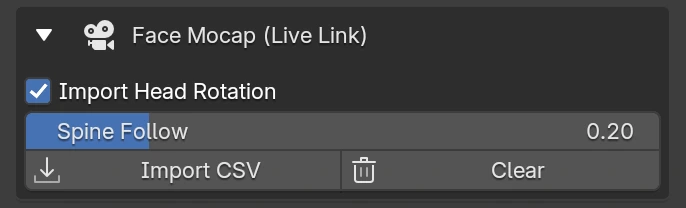
Face Mocap: Live Link
Tools for importing facial animation captured with ARKit via Live Link Face.
- Import Head RotationWhen enabled, head rotation data from the CSV is applied to the rig in addition to facial shape data.
- Spine FollowControls how much the spine follows the head rotation. 0 = no spine movement, 1 = full follow.
- Import CSVOpens a file browser to select a Live Link Face CSV file. Facial animation is keyframed across the frame range defined in Bake Animation.
- ClearRemoves all ARKit keyframes from the rig and deletes the facial action if it becomes empty.
Info
Version info, links, and AXIS Panel management.
- AXIS PanelThe AXIS Panel is an embedded script included with every rig. Use Install to add it to your scene. If a new addon version is installed, use Update / Reinstall to refresh it.
- Auto Run ScriptsIf a warning about Auto Run Python Scripts appears, enable it in Blender Preferences, otherwise the panel will not load automatically.
- DocumentationOpens this documentation page.
- TutorialsOpens the official YouTube tutorials playlist.
- Check UpdatesOpens the addon product page to check for new versions.
- Supportcontact@axisproject.co