02 · Panel
AXIS Panel
Rig control interface embedded inside the character file. Included free with every AXIS rig.
Overview
The AXIS Panel is a rig control interface embedded directly inside the character file. It is included free with every AXIS rig model and does not require any additional installation beyond the initial setup. Compatible with Blender 4 and 5.
Unlike the AXIS Core Addon, which handles retargeting and animation import, the AXIS Panel is focused on working with the rig itself: controlling layers, switching between IK and FK, posing, and managing viewport performance.
The panel lives in the N-panel of the 3D Viewport under the AXIS Panel tab and is available in both Object and Pose mode.
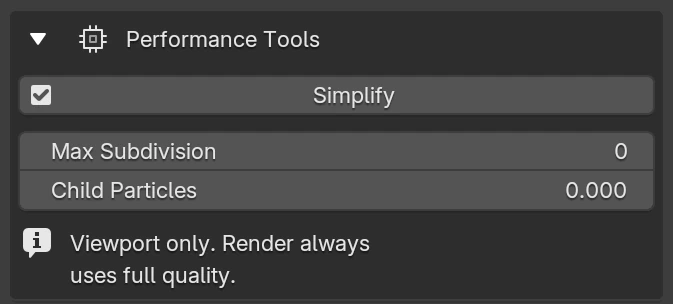
Performance Tools
Tools to keep the viewport responsive when working with complex scenes or high-detail characters.
- SimplifyToggles Blender's Simplify option. When active, the sliders below become available.
- Max SubdivisionLimits the subdivision level displayed in the viewport. Does not affect render quality.
- Child ParticlesReduces the density of particle-based hair in the viewport. Does not affect render quality.
AXIS Rig Selector
Assigns the character rig the panel will control. In scenes with multiple characters, use this to choose which one you are working with. If only one AXIS rig is present, it is assigned automatically.

Rig Layers
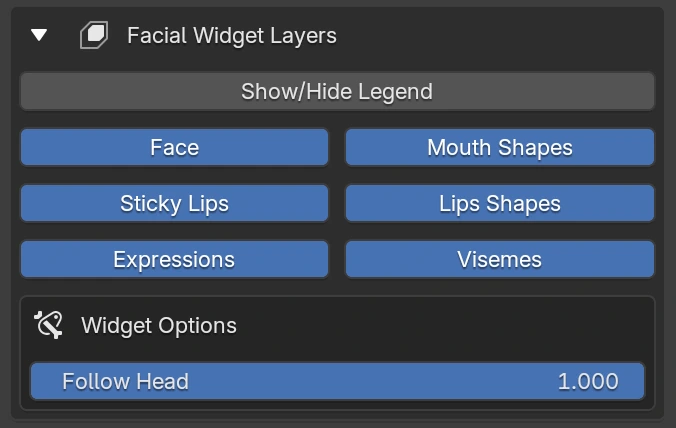
Facial Widget Layers
Visibility controls for the Face Widget rig, a secondary rig used for facial animation and posing. Each button toggles the visibility of a bone group.
- Show/Hide LegendShows or hides the control legend overlay on the widget.
- Follow HeadControls how much the Face Widget follows the head bone. 1 = full follow, 0 = independent.
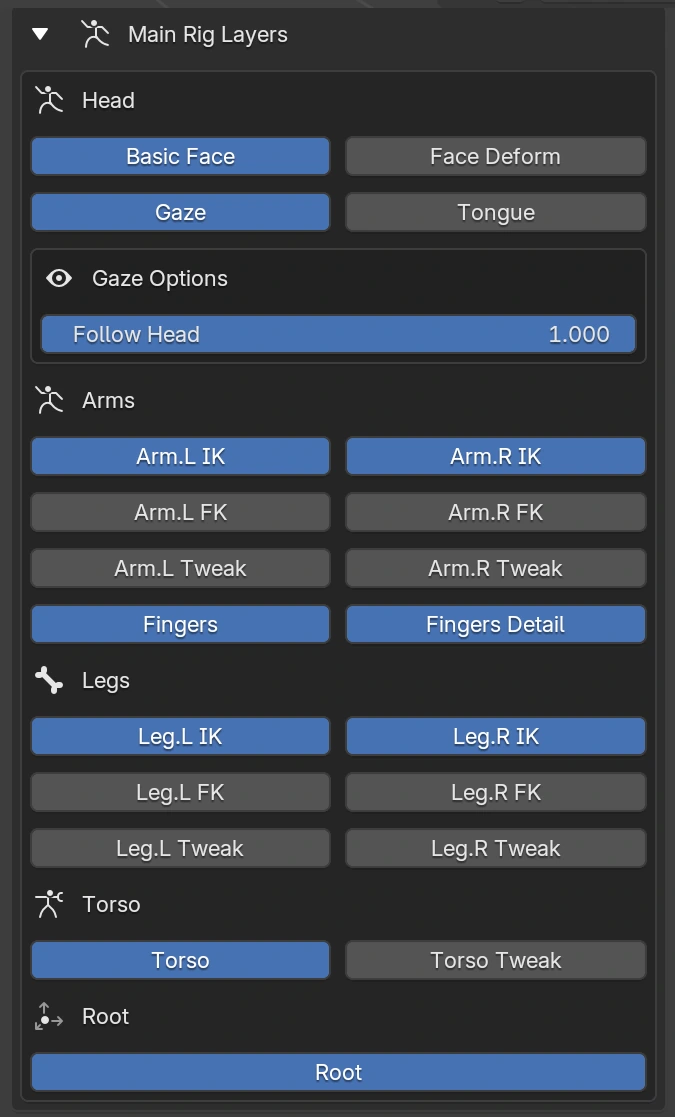
Main Rig Layers
Visibility controls for the bone groups of the main character rig, organised by body part: Head, Arms, Fingers, Legs, Torso, and Root.
- Gaze / TongueAdditional layers for eye direction and tongue controls, shown when available.
- Follow Head (Gaze)Controls how much the gaze follows the head rotation. Available on compatible rig versions.
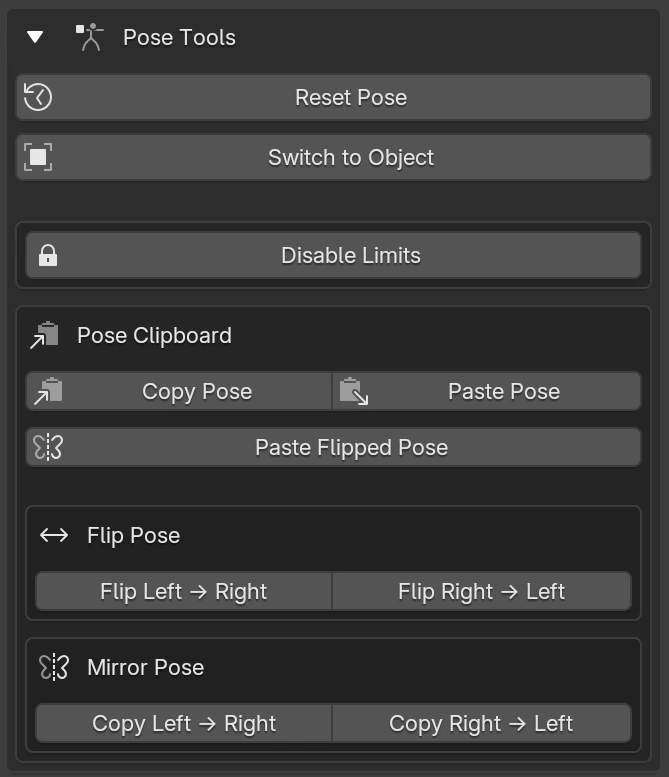
Pose Tools
- Reset PoseReturns all bones to their rest position.
- Switch to Pose / ObjectToggles between Pose Mode and Object Mode directly from the panel.
- Disable / Enable LimitsToggles bone rotation and location limits. Disable for exaggerated or stylised animation.
Pose Clipboard
- Copy PoseCopies the current pose of the selected bones.
- Paste PosePastes the copied pose onto the rig.
- Paste FlippedPastes the copied pose with left and right sides swapped.
Flip & Mirror Pose
- Flip Left ↔ RightSwaps the pose between both sides of the body simultaneously.
- Copy Left → RightMirrors the left side pose onto the right without swapping.
- Copy Right → LeftMirrors the right side pose onto the left without swapping.
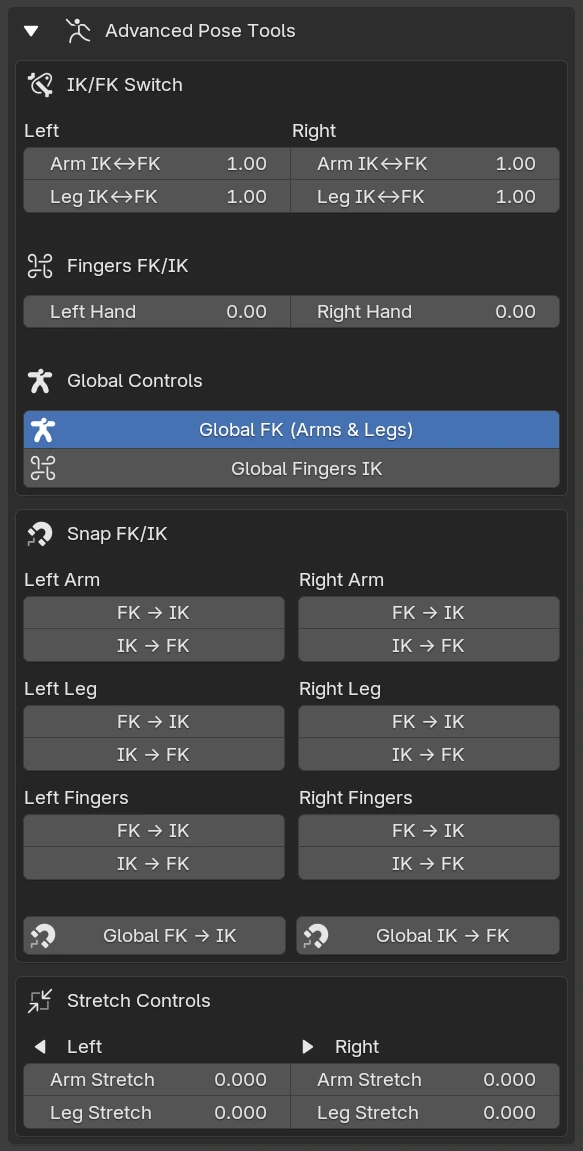
Advanced Pose Tools
Full IK/FK control for arms, legs, and fingers.
IK/FK Switch
- Arm IK↔FK0 = IK, 1 = FK. Left and right independently.
- Leg IK↔FKSame range. Only shown on full-body rigs.
- Fingers FK/IK0 = FK, 1 = IK. Per hand.
Global Controls
- Global FK (Arms & Legs)Switches all arms and legs to FK or IK at once.
- Global Fingers IKSwitches all fingers on both hands between FK and IK.
Snap FK/IK
Transfers the current visual pose from one mode to the other without any visible change in position.
- FK → IKSnaps the FK pose into the IK controls. Per limb and per hand.
- IK → FKSnaps the IK pose into the FK controls. Per limb and per hand.
- Global FK↔IKApplies the snap to all limbs simultaneously.
Stretch Controls
Sliders to enable stretch on arms and legs. Set to 0 to disable and keep the limb at natural proportions.
Info
- VersionCurrent version of the AXIS Panel installed in the file.
- Check for UpdatesChecks if a newer version is available and shows a button to install it automatically.
- DocumentationOpens this documentation page.
- TutorialsOpens the official YouTube tutorials playlist.
- AXIS Core AddonLink to the AXIS Core Addon, required for retargeting and facial mocap import.
- Supportcontact@axisproject.co
